Home NAS system
Copyright © Quectel Wireless Solutions Co., Ltd. 2026. All rights reserved.
The home NAS system is built on the Quectel Pi M2 smart single-board computer, provides high-speed storage via SSD solid state drives, enables file sharing through the Samba service, supports multiple access methods, and delivers a convenient privatized deployment solution for home users.
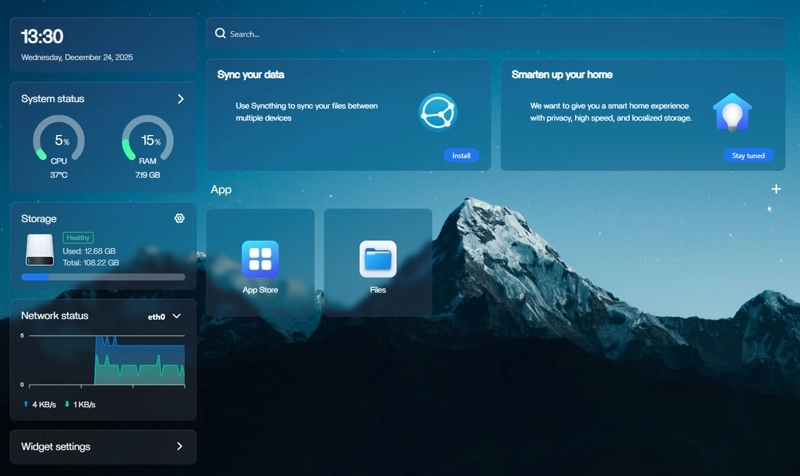
Development resources summary
Development accessories list
Accessory name |
Quantity |
Specifications |
|---|---|---|
Quectel Pi M2 smart single-board computer |
1 |
- |
USB-C power supply |
1 |
Official 45W USB Type-C Power Supply for Raspberry Pi 5, White Color, US Plug |
HDMI Type-A Male Cable |
1 |
HDMI 2.0; cable length 1 m; connectors: HDMI-A (male) to HDMI-A (male) |
Ethernet cable |
1 |
Length: 1m; Transmission rate: Gigabit |
SSD solid state drive |
1 |
|
Display screen |
1 |
24-inch HDMI monitor |
Physical reference of accessories
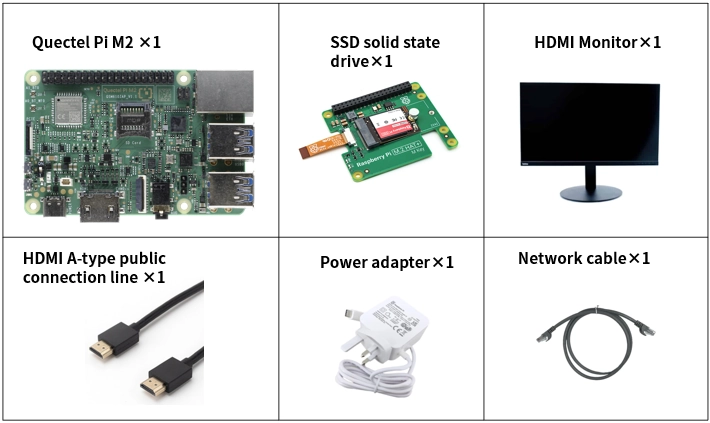
Get started quickly
Development preparation
The Quectel Pi M2 comes pre-installed with Debian 13 system image, so no re-flashing is required. Just follow the steps below.
Hardware connection
Complete all hardware connections by following the steps below. The step numbers match the labels in the interface diagram.
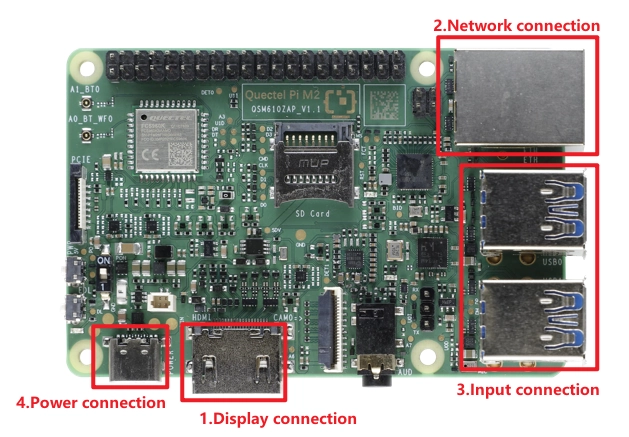
Display Connection: Choose the connection method based on your monitor’s interface. Here we use Option 2: connect one end of the Micro HDMI cable to the main board’s Micro HDMI port and the other end to the monitor’s HDMI port.
Option 1 (HD): Connect one end of the FPC ribbon cable to the MIPI port on the Quectel Pi M2, and the other end to the monitor’s MIPI port. Refer to the MIPI for details.
Option 2 (Compatible): Connect one end of the HDMI cable to the HDMI port on the Quectel Pi M2, and the other end to the monitor’s HDMI port.
Network Connection: Connect the Quectel Pi M2 Ethernet port to the router’s LAN port using an Ethernet cable.
Peripheral Connection: Plug the USB keyboard, mouse, and USB camera into the USB-A ports on the Quectel Pi M2. For wireless keyboard/mouse, simply plug the receiver into a USB port.
Power Connection: Finally, plug the USB-A end of the power cable into the power adapter, and the USB-C end into the power port on the Quectel Pi M2.
SSD connection: First, install the three nylon standoffs and secure their bases with three short screws. Then install the GPIO adapter and press down firmly to ensure all pins are fully seated. Next, insert the PCIe adapter cable fully and evenly into the PCIe port on the Quectel Pi M2, and push down the PCIe connector brackets from both sides to lock the cable firmly in place.
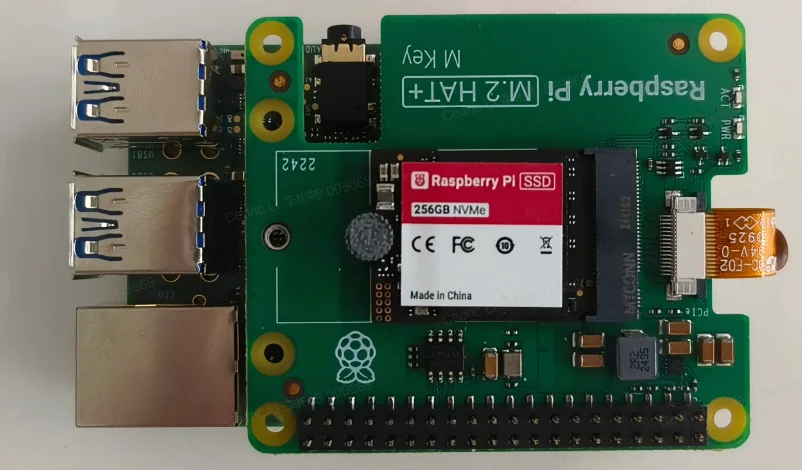
Project implementation
Update software sources
sudo apt-get update
Install Samba
sudo apt-get install samba
Create mount folder
sudo mkdir /mnt/resource
Set permissions for mount folder
sudo chown -R username: /mnt/resource/
Check disk info
Check the device corresponding to each partition
awk 'NR > 2 {printf "%-10s %s\n", $4, $3 / 1024 / 1024 " GB"}' /proc/partitions
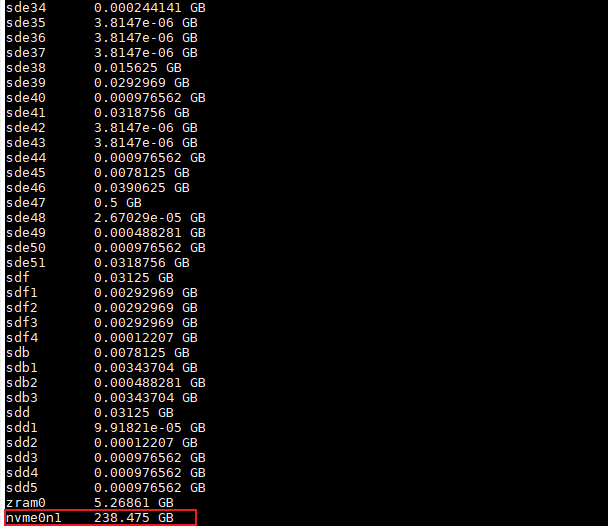
Formatting SSD
sudo mkfs.ext4 /dev/nvme0n1 # Format the hard drive device according to its actual mount location
Check the filesystem type of the storage device to be mounted (Note: The Quectel Pi M2 uses ext4 for mounting by default. If the filesystem type of the external storage device does not match, the storage device needs to be reformatted).
sudo blkid
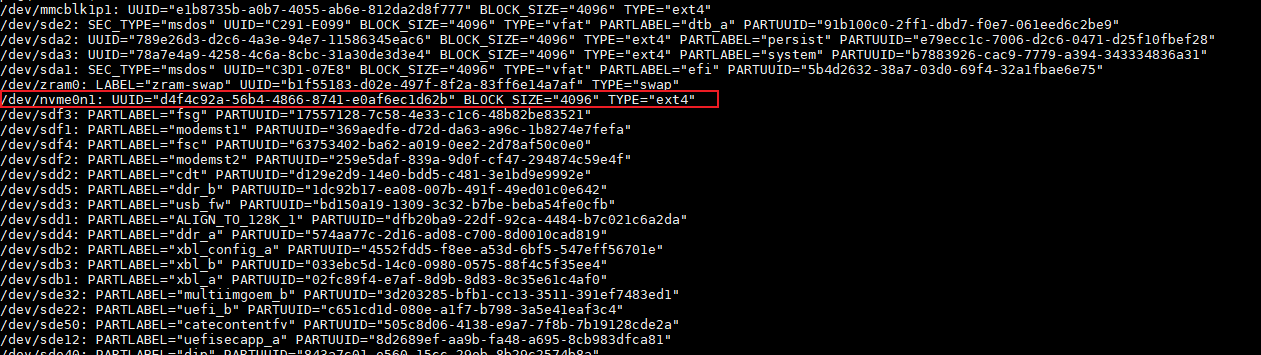
Check current mounts (If there is an existing mount point under /mnt/resource, you need to unmount it first).
df -h
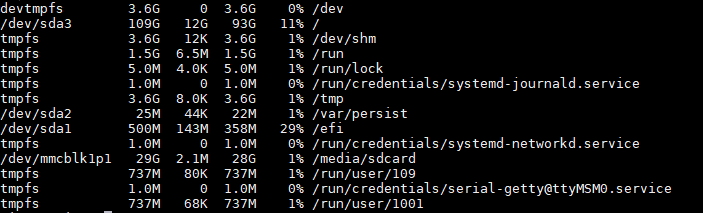
Check the UUID of the corresponding partition, as well as the user’s uid and gid.
ls -lha /dev/disk/by-uuid
id username

Modify configuration file
Here we use a 256GB solid state drive as the NAS server, so we select nvme0n1 as the extended partition to mount and modify the fstab file.
sudo apt install vimsudo vim /etc/fstab
Press ESC+“i” to add the following statement to the end of the file. After adding it, press ESC+“Shift + :”, then type wq and press Enter to save and exit.
#Use ext4 as the file system, referring to the partition file type queried in the previous step.#Add the nofail option. The nofail option allows normal booting even if the device does not exist.UUID=The UUID queried in the previous step /mnt/resource ext4 defaults,nofail 0 0

Mount the device
sudo mount /mnt/resource
df -h
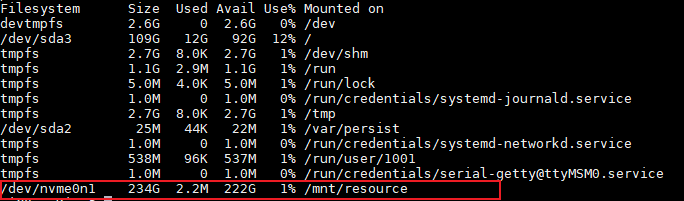
Configure Samba user
sudo smbpasswd -a username
Note: Enter the current username and password. Please note that the user here must be an existing Linux user.
Edit Samba config
Enter the following command to open the configuration file
sudo vim /etc/samba/smb.conf
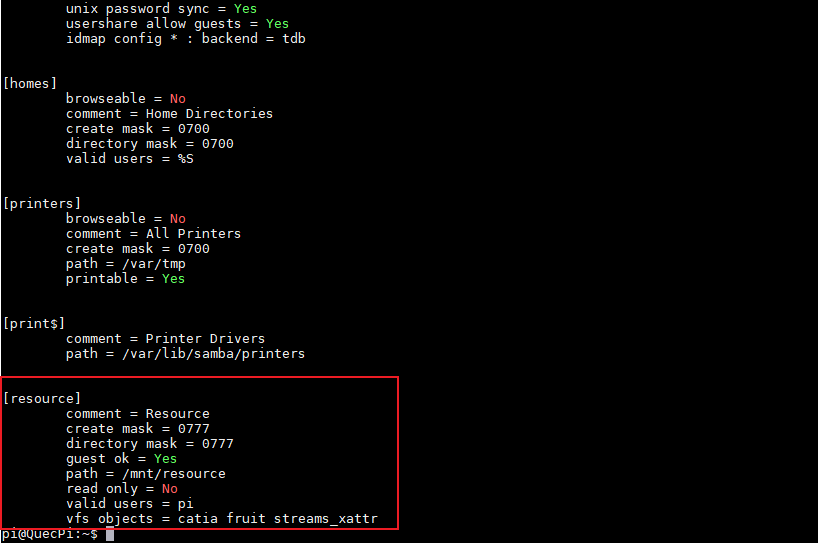
Add the following statements at the end of the file (the content in brackets is the disk name displayed externally).
[resource]
    comment = Resource
    create mask =0777
    directory mask = 0777
    path = /mnt/resource
    valid users = pi
    read only = no
    vfs objects = catia fruit streams_xattr
Check configuration
sudo testparm -s
Restart Samba
sudo systemctl restart smbd
sudo systemctl enable smbd
Add firewall rules
#Add allowed ports
sudo iptables -A INPUT -p tcp -m tcp --dport 445 -j ACCEPT
sudo iptables -A INPUT -p tcp -m tcp --dport 139 -j ACCEPT
#Allow client IPs through the firewall
sudo iptables -A INPUT -p icmp --icmp-type echo-request -s 192.xx.xx.xx -j ACCEPT
#Saving Rules
sudo sh -c 'iptables-save > /etc/iptables/rules.v4'
Test Samba service
To test if a mounted folder has the necessary permissions, enter the following command. If the test file appears, it means you can perform operations on that folder.
sudo -u username touch /mnt/resource/test_from_kane.txt

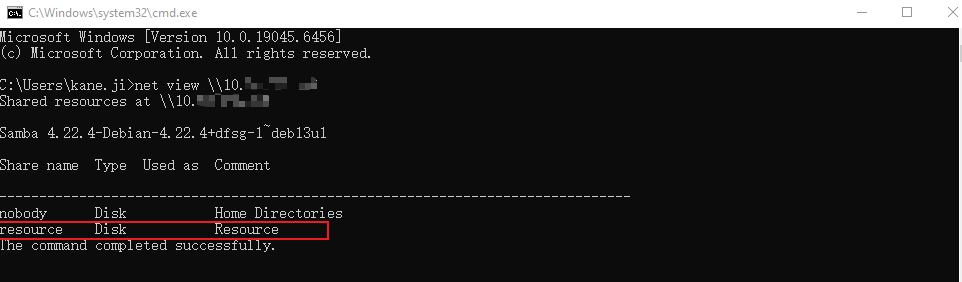
Test the Samba share connectivity in Windows CMD. If the customized resource folder is displayed, it proves that the NAS server has been successfully set up.
net view \\[NAS_IP]
Connect to the NAS server
Windows file explorer (Easiest)
Enter the following commands in sequence in the console of the Quectel Pi M2 to grant the user the highest privileges for operation.
cd /mnt
sudo chmod 777 resource/
Next, enter the
ip addresscommand in the console to query the IP address of Quectel Pi M2.Open Windows File Explorer, enter”\ + the IP address of Quectel Pi M2”in the search box, and press Enter to view the two shared folders.
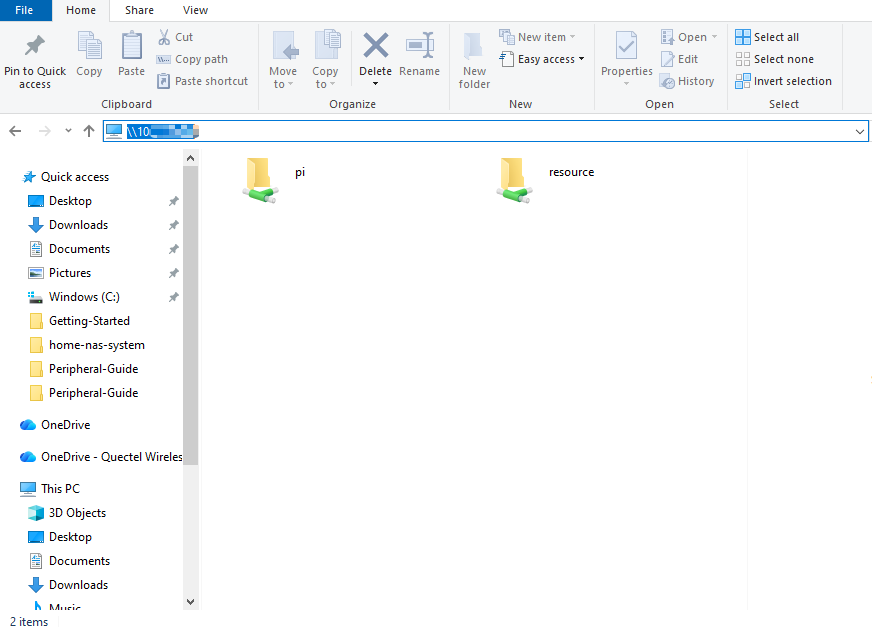
After opening the resource folder in Windows File Explorer, users can directly add, delete, and modify files within the mounted folder.

SCP commands
Upload files from Windows to NAS server.
scp "local_file_path" Quectel Pi M2 username@nas_ip:/mnt/resource/
Upload an entire folder to the NAS server from Windows.
scp -r "local_folder_path" Quectel Pi M2 username@nas_ip:/mnt/resource/
CasaOS
CasaOS is an open-source home storage solution built on the Docker ecosystem, designed specifically for home users to deliver simple, easy-to-use, and elegant personal storage services. It allows users to quickly build and manage various home entertainment and smart applications, such as media servers, file storage services, and ad blockers, through a user-friendly graphical interface.
Update Source
sudo apt update
Install docker
sudo apt install docker.io
Start the docker service
sudo systemctl start docker
sudo systemctl enable docker
Check docker service status
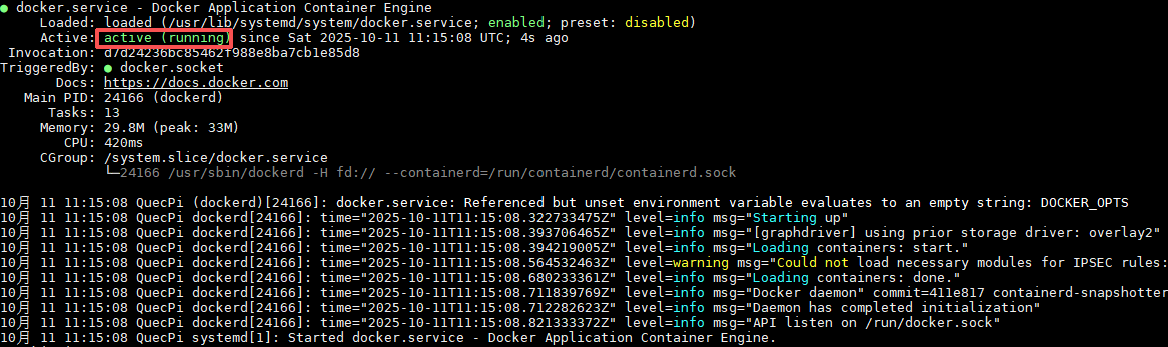
sudo systemctl status docker
After successful startup, the following is shown:
Install the full version of wget
sudo apt install wget -y
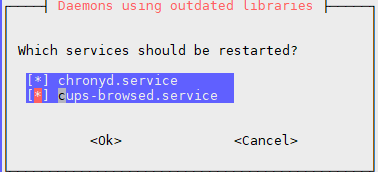
When the following option box appears, just press Enter.
Install CasaOS
sudo apt install curl -fsSL https://get.casaos.io | sudo bash
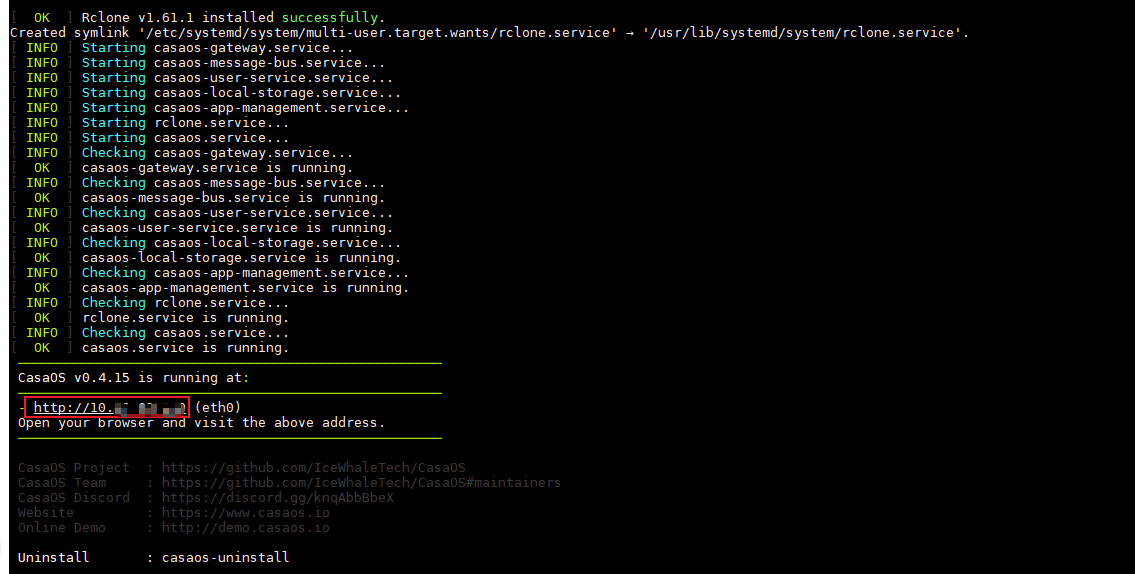
After successful installation, copy the URL in the red box and open it in the browser.
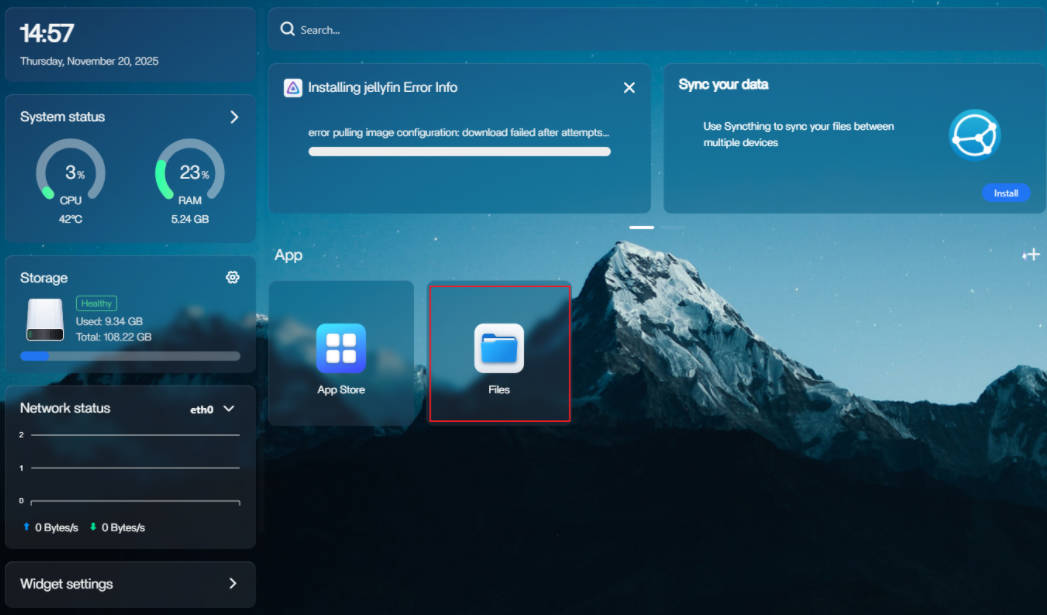
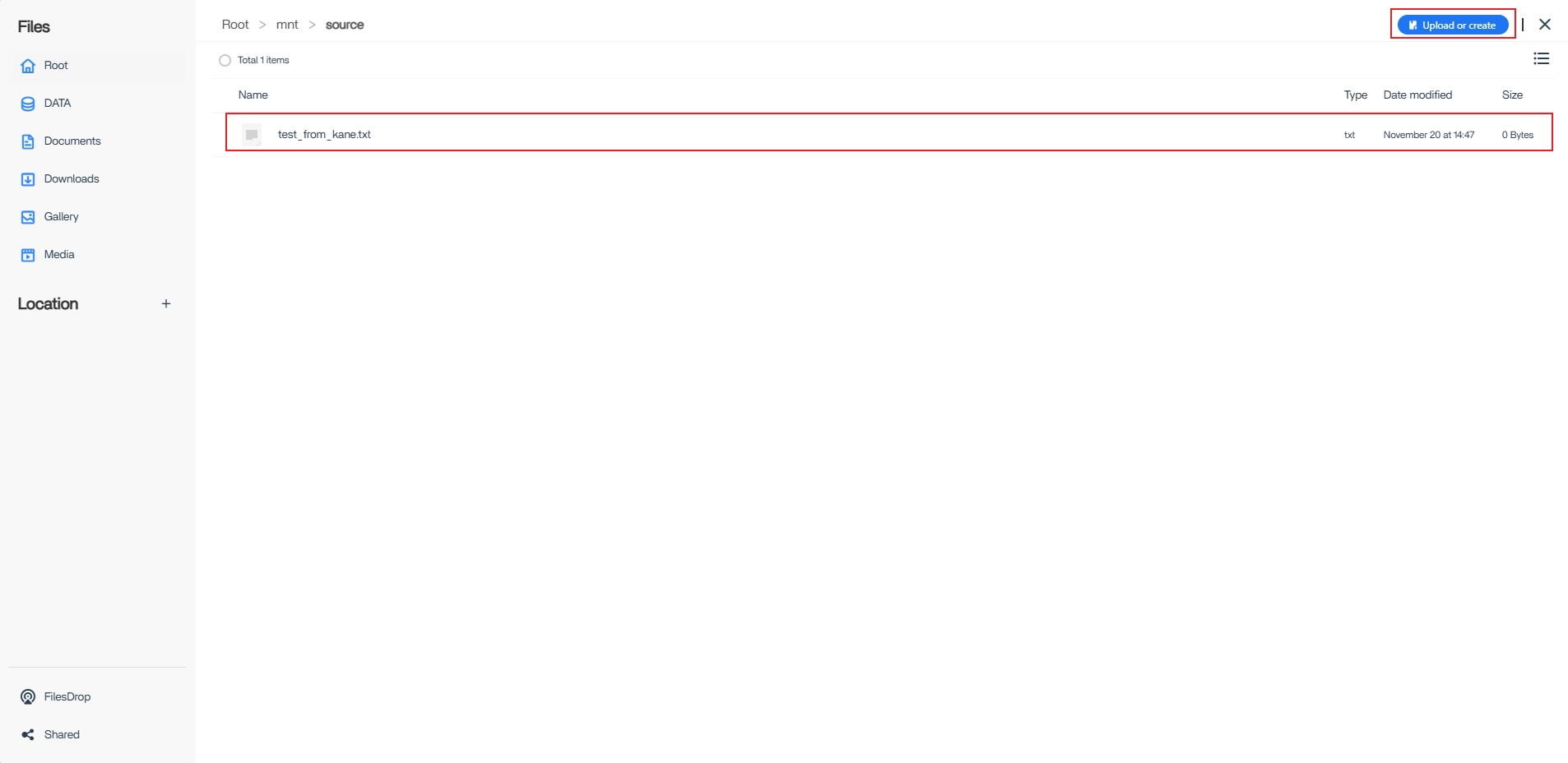
After creating an account, log in and click Files. After finding the folder mounted on the NAS server in the Root directory, you can directly upload, delete, modify, etc in the folder.
Application demo
Technical Support and Contributions
If you encounter any issues during use, please submit technical inquiries on the Quectel Official Forum. Our technical support team will respond promptly.